Phone usage report
How to Read Your Android Phone Usage Report
How to read your Android phone usage report, spot 7 key usage patterns, and decide whether an app blocker or a screen time audit is the right next step.
Your Android phone already collects detailed data about how you use it — which apps you open, how long you spend in each one, how many times you unlock the screen, and when throughout the day your usage peaks. That data is available right now, usually through Settings or Digital Wellbeing. The challenge is not accessing it. The challenge is knowing which numbers actually matter.
A basic Android phone usage report tells you your total screen time and your top apps by minutes. That is a starting point. It does not tell you whether your usage follows a repeating rhythm, whether certain apps fragment your attention across the day, or whether your evening scrolling has quietly become a nightly habit. To answer those questions, you need to look beyond the headline number and read the report with a pattern-focused eye.
Key takeaways
- Android phone usage reports show total screen time and app rankings, but behavioral patterns need closer reading.
- Before installing an app blocker, check which apps repeat, when usage spikes, and whether the same rhythm appears night after night.
- The difference between a report, a tracker, a blocker, and an audit is what question each one answers — and they answer different things.
- Understanding your patterns first often makes any follow-up action — including doing nothing — a more informed choice.
What is an Android phone usage report?
An Android phone usage report is a summary of your app activity, screen time, and device interactions over a selected time period. It is generated by the Android operating system through the Usage Stats API — the same data source that powers Digital Wellbeing, the built-in screen time feature on most Android phones.
A typical usage report shows:
- Total screen time per day
- Time spent in each app
- Number of times each app was opened
- Number of device unlocks
- Notifications received
- A rough timeline of when usage happened
You can view a basic version of this report by going to Settings > Digital Wellbeing & parental controls. Third-party apps that request the Usage Stats permission can build more detailed reports from the same underlying data.
What a basic phone usage report can tell you
A basic Android usage report is good at answering surface-level questions. If you want to know whether yesterday was a heavy phone day compared to last week, or which app you spent the most time in, the report gives you that directly.
Here is what a standard report handles well:
- Ranking apps by total screen time
- Showing daily totals and how they change day to day
- Counting how many times you unlocked your phone
- Listing how many notifications each app sent
- Giving a broad sense of whether your usage is going up or down
For many people, this is enough to prompt a moment of reflection. Seeing that you spent three hours on a social app can be a useful data point on its own.
What a basic report usually does not explain
Where a basic report falls short is on questions about patterns, repetition, and context. A daily total of four hours could mean very different things depending on when those hours happened, across how many sessions, and in which apps.
A basic usage report typically does not answer:
- Whether your screen time is concentrated in long sessions or scattered in dozens of short checks
- Which apps you open repeatedly throughout the day rather than using in one sitting
- When your usage tends to spike — mornings, afternoons, or late at night
- Whether your after-10 PM phone use follows the same rhythm night after night
- Whether weekends look significantly different from weekdays
- Whether one or two specific apps drive most of your total screen time
- How your usage has changed over the last month or quarter
These are the questions that turn a usage report from a curiosity into a useful self-understanding tool. Answering them requires looking at the data through a specific set of lenses — which is what the seven patterns below are designed to help you do.
7 patterns to check before you install an app blocker
Before you lock yourself out of an app or set time limits you may not need, it is worth spending ten minutes scanning your usage report for these seven patterns. Each one tells you something different about your phone habits.
1. Which apps take the most total time
Start with the obvious one. Open your usage report and look at the top five apps by total screen time. This gives you a high-level view of where your attention goes.
What to look for: apps that surprise you. The ones you expected to see — like a messaging app you use for work — are not the concern. The ones that rank higher than you would have guessed are worth a closer look.
2. Which apps you open repeatedly
Total time matters, but so does frequency. An app you open 30 times a day for two minutes each time has a different impact on your attention than an app you use once for an hour.
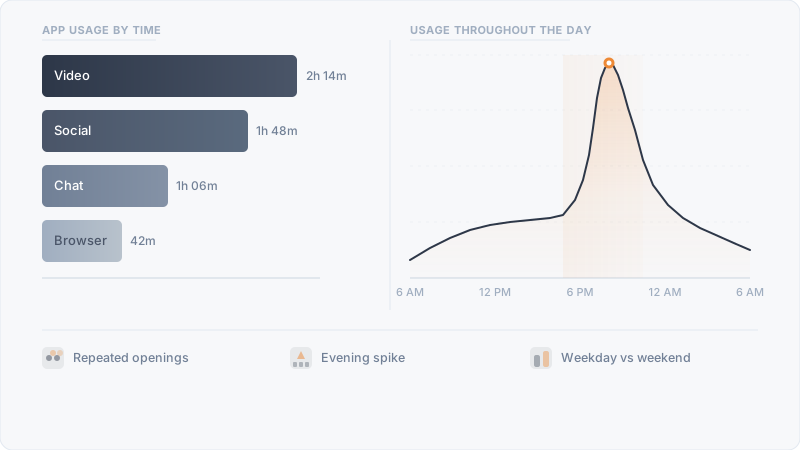
Check the “times opened” metric for your top apps. A high open count combined with modest total time often signals fragmented, reactive checking — the kind of behavior that disrupts focus without showing up as a large number in a daily total.
3. When usage starts to spike
Look at the time-of-day breakdown. Does your phone use climb steadily through the afternoon? Does it spike right after work? Does it stay flat all day and then jump sharply after 9 PM?
The timing of your usage often matters more than the total amount. Two hours used across a productive morning are not the same as two hours that start at 10:30 PM and stretch past midnight.
4. Whether nighttime phone use is becoming a rhythm
This is one of the most common patterns people notice once they start looking. Check the hour before your usual bedtime across several days. Do the same apps appear at the same time? Is the behavior consistent enough to call it a rhythm?
A single late night of scrolling is not a trend. But if you open the same short-video app at 10:45 PM four nights in a row, you are looking at a pattern — not a one-off. Recognizing that it is a rhythm, rather than a random lapse, changes how you think about changing it.
5. Which apps create short but frequent checks
Some apps are designed for quick, repeated interactions — social feeds, messaging, short-form video. Their usage often shows up in a usage report as many short sessions scattered across the day.
Look for apps with a high open count but low average session length. These are the apps most likely to pull your attention away from other tasks in small increments, without ever registering as a “heavy” app in total time.
6. Whether weekends look different from weekdays
Compare a Tuesday to a Saturday. For many people, weekend phone use shifts in both volume and app mix. Work-related apps drop. Entertainment and social apps rise. Bedtime scrolling may start earlier or go later.
Understanding the weekday-weekend split helps you decide whether any changes you want to make should apply all week or only on specific days. A blanket rule that does not account for your actual rhythm is harder to stick to.
7. Whether one or two apps drive most of the problem
Here is a useful filter: remove your top two apps from the report and look at what is left. If the remaining usage feels manageable and intentional, you may not have a “phone problem.” You may have a relationship with one or two specific apps that needs attention.
This reframes the issue from “I use my phone too much” to “I use this particular app in a way that does not match how I want to spend my evenings.” The second statement is more specific, more honest, and easier to act on.
Phone usage report vs screen time tracker vs app blocker vs screen time audit
Each of these tools answers a different question. Mixing them up is a common mistake — and it often leads people to install a blocker when what they really needed was a clearer picture of their behavior.
| Category | Phone usage report | Screen time tracker | App blocker | Screen time audit |
|---|---|---|---|---|
| What it shows | App time, unlocks, notifications | Daily totals, per-app rankings, usage goals | Access restrictions, time-based locks | Behavioral patterns, trends, repetition, timing |
| Main question | What is in my usage data? | How much time did I spend? | How do I stop using an app? | What patterns explain my usage? |
| Data source | Android Usage Stats (raw) | Ongoing monitoring | Usage access for blocking | Usage Stats with pattern analysis |
| Best for | A one-time data snapshot | Ongoing awareness of daily totals | Enforcing a decision already made | Understanding behavior before deciding |
| Privacy model | On-device by default | Varies — many are cloud-based | Varies — some need accessibility services | Best when kept on-device |
These tools are not in competition. A report gives you raw data. A tracker watches the numbers over time. An audit helps you understand the patterns in between. A blocker enforces a boundary you have already chosen. Using them in the right order — report, then audit, then decide — often leads to better outcomes than jumping straight to enforcement.
When you need an app blocker — and when you only need an audit
There is a practical difference between knowing what you want to change and knowing what is actually happening. An app blocker is useful when you have already answered the first question. A screen time audit is useful when you are still working on the second.
When a blocker makes sense
If you have identified a specific app, a specific time window, and a specific pattern you want to stop, an app blocker can enforce that cleanly. You set a schedule, and the app becomes unavailable during those hours. This works well when the pattern is clear and the decision is firm.
When an audit is the better first step
If you have a general feeling that your phone habits could be better, but you have not yet pinned down which apps, which times, or which patterns are involved, start with an audit. A screen time audit helps you see the full picture — which apps repeat, when usage spikes, how the rhythm changes across weeks — before you commit to a specific restriction.
For some people, simply seeing the pattern laid out clearly is enough to shift the behavior. For others, it clarifies exactly which app to block and when. Either way, the audit comes first.
For a deeper comparison of these two approaches, read our guide on screen time trackers vs screen time audits.
How Dayprint approaches phone usage reports
Dayprint is a private screen time audit app built for Android. It takes the raw usage data your phone already collects and organizes it into readable reports focused on patterns — not just totals. It shows you which apps you open most often, how your usage changes from morning to night, whether bedtime scrolling is becoming a nightly rhythm, and how your digital habits shift from week to week.
Because Dayprint processes everything on-device, your usage history stays on your phone. There is no account registration and no cloud upload. It is not an app blocker and does not enforce limits. The goal is to give you a clear, private picture of your phone habits so you can decide what to change — or whether anything needs changing at all. For more on why on-device processing matters, read about private screen time audits.
Frequently asked questions
What is an Android phone usage report?
An Android phone usage report is a summary of your app activity, screen time, unlocks, and notifications, generated from the Android Usage Stats API. You can view a basic version through Settings > Digital Wellbeing, or use a third-party app for a more detailed breakdown.
How do I find my phone usage report on Android?
Go to Settings > Digital Wellbeing & parental controls. The dashboard shows your daily screen time, top apps by usage, unlock count, and notification data. Tap the timeline chart to see when during the day your usage peaked.
What does an Android usage report not tell me?
A standard usage report does not reveal behavioral patterns — such as repeated app-opening cycles, bedtime scrolling rhythms, or whether your phone use is concentrated or fragmented. It also typically does not show long-term trends across weeks or months.
How is a usage report different from a screen time tracker?
A usage report is a static snapshot of past activity. A screen time tracker monitors usage continuously and often includes features like daily goals, usage limits, and notifications. A report tells you what happened. A tracker watches what is happening.
Do I need an app blocker if my screen time is high?
Not necessarily. High screen time alone does not mean you need a blocker. Start by understanding which apps, when, and what patterns are behind the number. A screen time audit can help you decide whether blocking, reducing, or simply staying aware is the right move.
Can I use a phone usage report to improve my digital wellbeing?
Yes — if you read it for patterns rather than just totals. Looking at which apps repeat, when usage spikes, and whether the same rhythm appears night after night gives you specific behaviors to reflect on. That is more useful than staring at a single daily number.
Related reading
- What Is a Screen Time Audit? — understand the auditing approach before tracking or blocking
- Screen Time Tracker vs Screen Time Audit — a detailed comparison of two different approaches
- What Makes a Screen Time Audit Private? — why on-device analysis matters for behavioral data
- Why You Keep Scrolling at Night — and How to Spot the Pattern — understand your nighttime phone habits